Private tester build · macOS on Apple silicon · ZIP package
Your first setup
From download to your first request.
STEP 01 / 07
Download the beta.
Click Download the Mac beta above.
Wait until your browser says the download is complete.
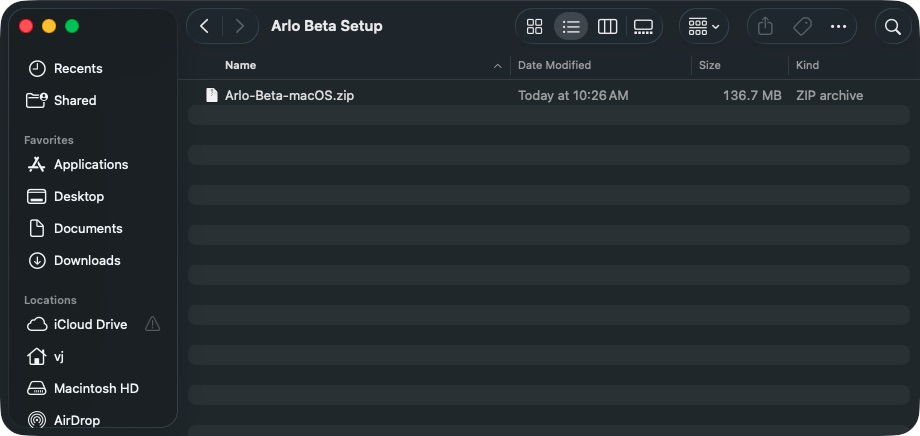
Open Finder → Downloads and find Arlo-Beta-macOS.zip.
Check: the ZIP is saved in your browser’s downloads folder.
STEP 02 / 07
Expand the ZIP.
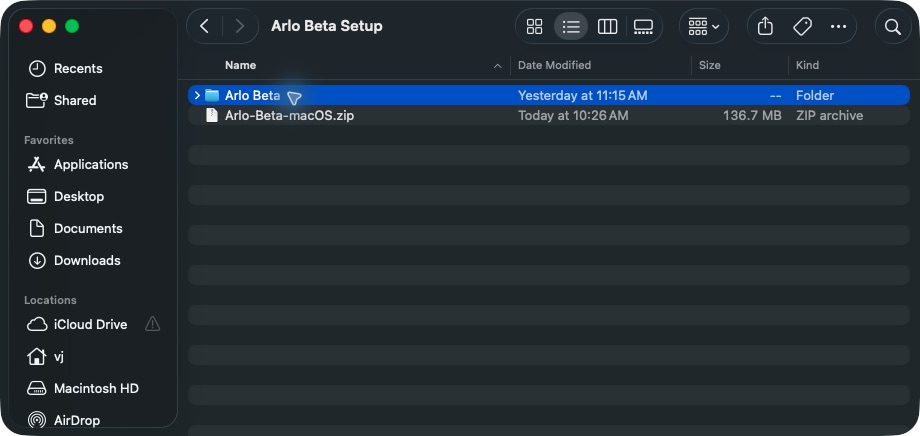
Double-click Arlo-Beta-macOS.zip in Downloads.
Wait for the Arlo Beta folder to appear.
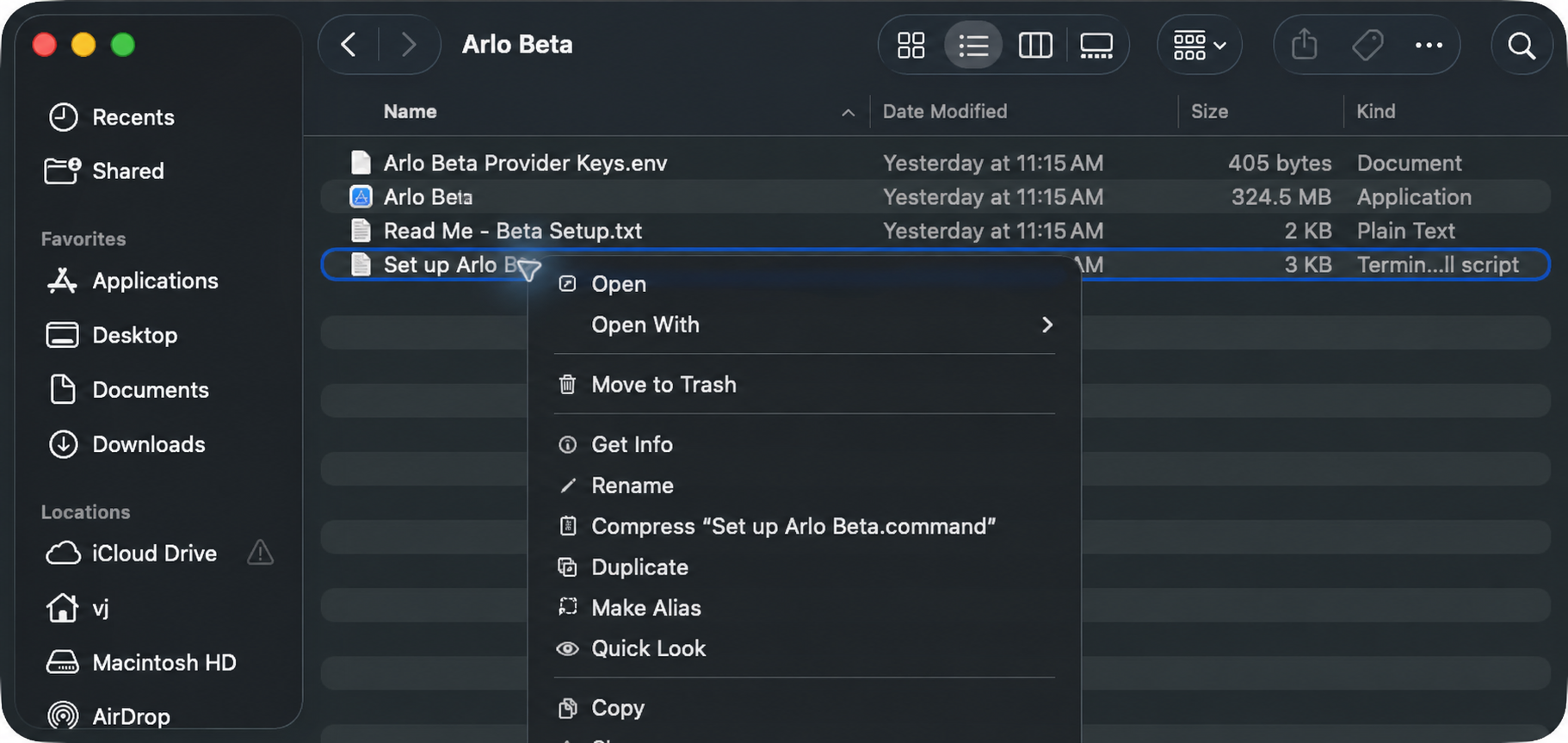
Open that folder. You should see the app and Set up Arlo Beta.command.
Keep the app, setup command, and configuration file together in that folder.
STEP 03 / 07
Open the setup helper.
Inside the expanded folder, right-click Set up Arlo Beta.command and choose Open.
If macOS says it cannot verify the file, click Done. Keep the file.
Continue to step 4 to allow this exact command.
Keep the downloaded folder open. Next, approve this setup command in System Settings.
STEP 04 / 07
Allow the setup command.
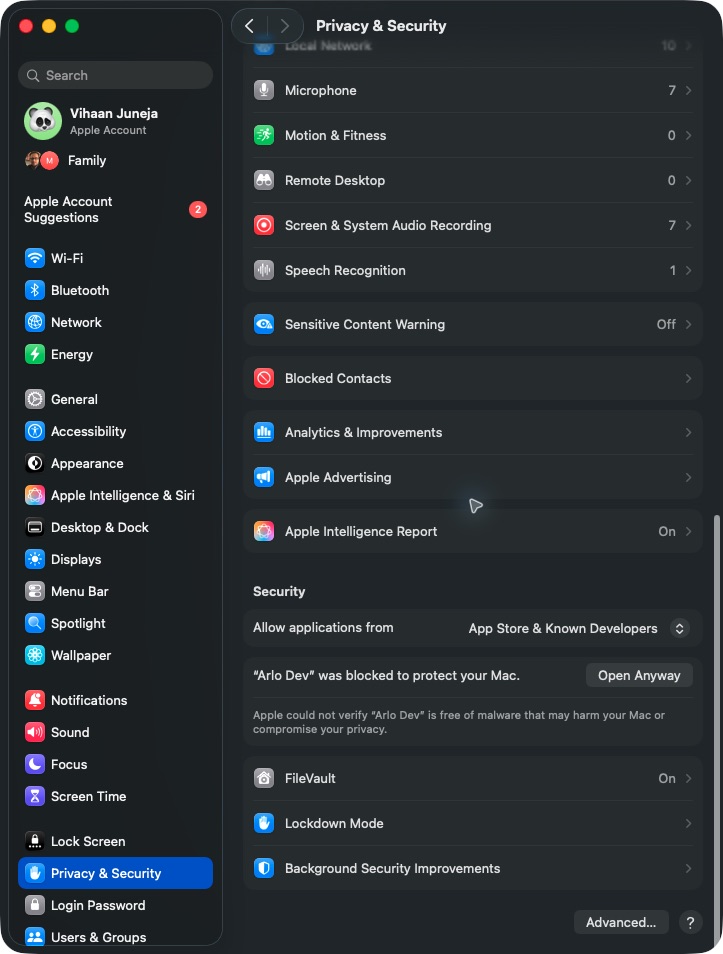
Open the Apple menu → System Settings → Privacy & Security.
Scroll down to Security. Find the warning about Set up Arlo Beta.command.
Click Open Anyway, confirm Open, and enter your Mac login password if asked.
Let Terminal finish. If Keychain asks to allow signing, use your Mac login password. Wait for Arlo Beta is installed at, then press Return.
No Open Anyway button? Try opening the command once more, choose Done, then return here. The button appears after macOS blocks an opening attempt.
The real screenshot shows the same control for an older Arlo build; the blocked name on your Mac will match your download.
STEP 05 / 07
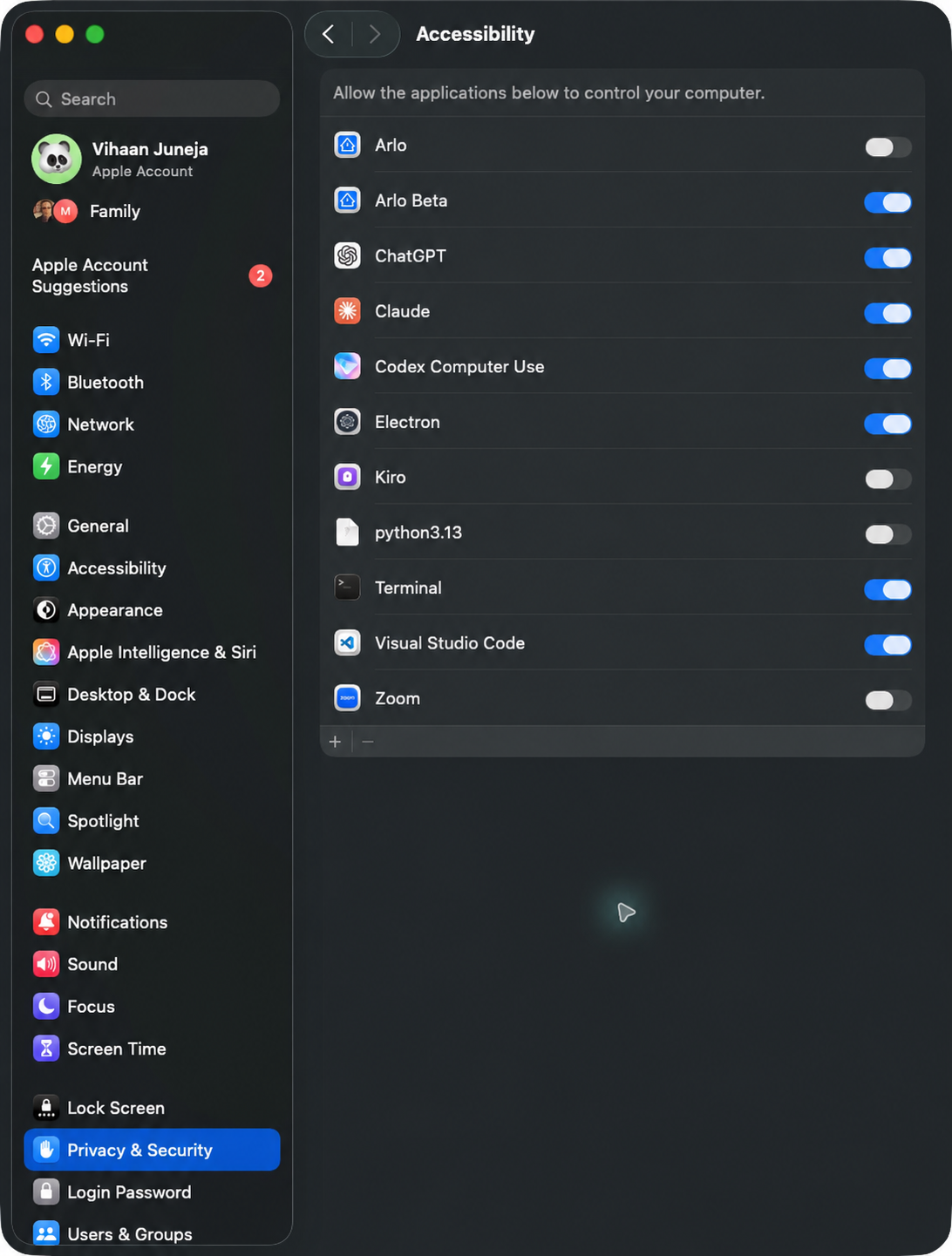
Allow Accessibility.
In Finder, choose Go → Home → Applications and open Arlo Beta.app.
Click Arlo’s Accessibility setup button. Or open System Settings → Privacy & Security → Accessibility.
Turn on Arlo Beta. Authenticate if macOS asks.
Accessibility lets Arlo click and type. Missing from the list? Click +, press Shift–Command–H to open your home folder, then choose Applications → Arlo Beta.app. If the app itself is blocked on first opening, use the Open Anyway steps again for Arlo Beta.
STEP 06 / 07
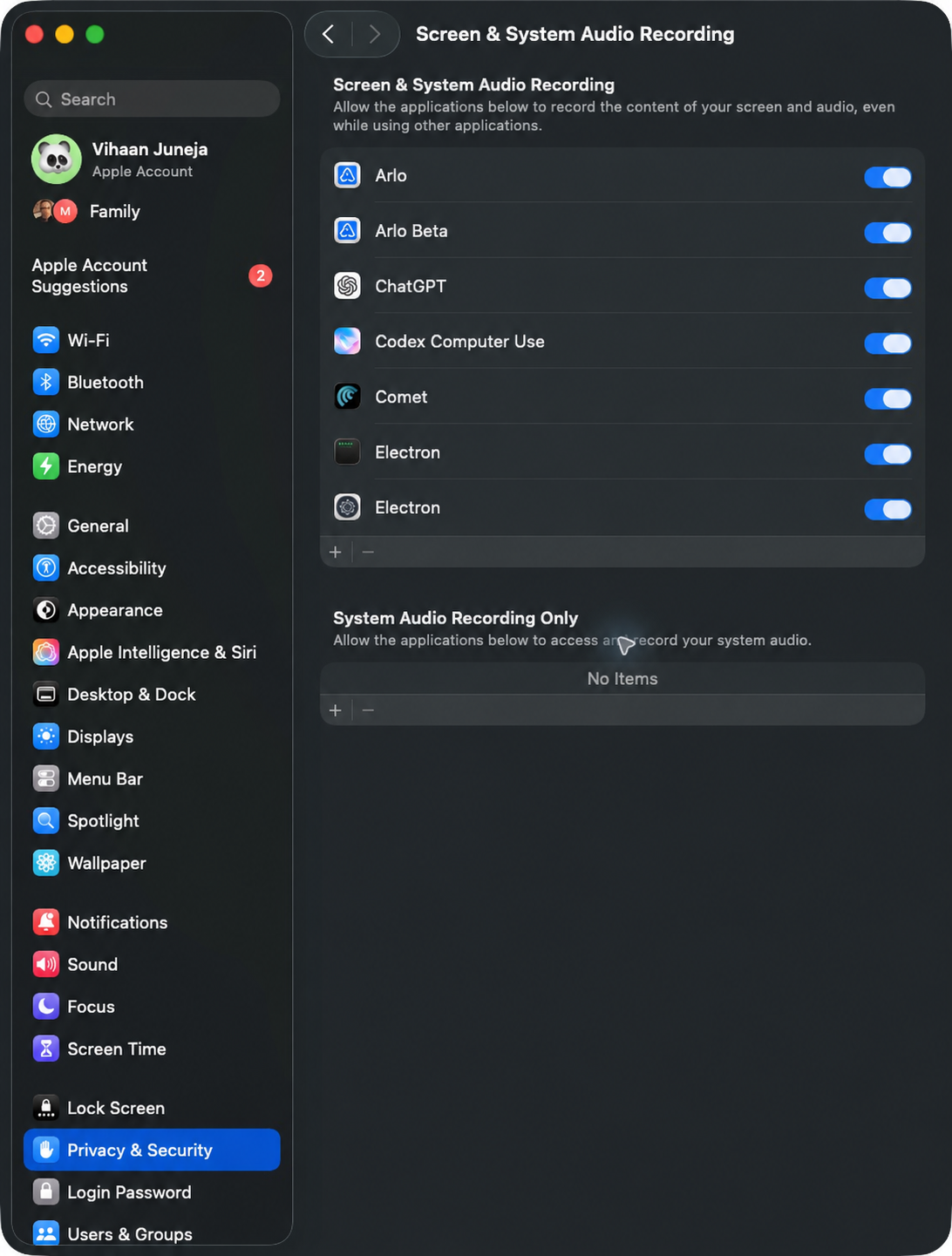
Allow screen recording.
Open System Settings → Privacy & Security → Screen & System Audio Recording (called Screen Recording on some Macs).
Turn on Arlo Beta in the screen-recording section.
Choose Quit & Reopen if asked, then return to Arlo.
Choose Quit & Reopen if macOS asks. Screen Recording lets Arlo see the screen to check what happened. You do not need to add it under System Audio Recording Only.
STEP 07 / 07
Try one simple request.
Click the Arlo command bar.
Type Open my Downloads folder and press Return.
Check that Finder opens Downloads. Your computer setup is complete.
Open Friends and sign in to chat, create a group, or send a Drop.
Friends → Settings → Share your activity lets friends see what you’re working on. Leave the activity text empty for automatic activity. Sign in again after quitting the beta app.
Next time: update in one step.
Download and expand the new ZIP, then run its Set up Arlo Beta.command again. Keep your existing local signing identity in Keychain so future builds can use it.
Your beta package
Everything in one download.
Arlo Beta is separate from your regular Arlo app and its local data. Friends and Drops need a sign-in; computer tasks need the two Mac permissions.
Download the Mac beta ↓The private download link expires after 5 minutes. Reload this page to request a fresh link. Keep the beta package private.
Questions
If setup gets stuck.
Arlo Beta does not appear in a permission list
Run the setup command again from the expanded beta folder and open Arlo Beta from ~/Applications. Choose the Arlo Beta entry rather than Electron. macOS may need the app opened once before it appears.
A permission still shows as missing
Check Arlo Beta in both Accessibility and Screen & System Audio Recording. Return to Arlo and let it check again. After an update, run the setup command from the new package.
Arlo says provider configuration is missing
Run Set up Arlo Beta.command again from the expanded folder, then reopen Arlo Beta. The command copies configuration into your private application support folder.
macOS blocks the first launch
This invited beta is not Developer ID notarized. Dismiss the alert with Done, then choose Open Anyway in System Settings → Privacy & Security.
How do I remove the beta?
Quit Arlo Beta and move ~/Applications/Arlo Beta.app to Trash. You can also remove its data at ~/Library/Application Support/Arlo Dev.